
Virtual office backgrounds have become an essential tool for professionals worldwide. Whether you're working from home, joining a video interview, or presenting to clients, the right background can make a significant difference in how you're perceived. This comprehensive guide covers everything you need to know about virtual backgrounds in 2026.
Quick Links by Platform
What Are Virtual Office Backgrounds?
A virtual office background is a digital image or video that replaces your real-world surroundings during video calls and meetings. Using advanced AI technology, video conferencing software can detect the outline of your body and seamlessly substitute everything behind you with a professional image of your choice.
Think of it as a digital green screen that doesn't require an actual green screen. The technology has evolved dramatically over the past few years, making virtual backgrounds accessible to everyone with a computer and webcam.
Quick Definition
A virtual background is a digital image that replaces your physical surroundings during video calls, allowing you to present a professional appearance regardless of your actual location.
Virtual backgrounds serve multiple purposes:
- Privacy Protection: Hide your personal space, family members, or messy rooms from colleagues and clients
- Professional Image: Present a polished, consistent appearance in every meeting
- Brand Consistency: Display your company logo and brand colors across all team video calls
- Distraction Reduction: Eliminate visual distractions that might take attention away from you

How Virtual Backgrounds Work
Virtual backgrounds rely on sophisticated computer vision and machine learning algorithms to function effectively. Here's a breakdown of the technology:
The Technology Behind Virtual Backgrounds
Semantic Segmentation: The software analyzes each frame of your video feed using a neural network trained to identify human subjects. It creates a "mask" that separates you from your background in real-time.
Edge Detection: Advanced algorithms detect the precise edges of your body, hair, and even complex shapes like glasses or headphones. Modern systems can process these calculations up to 30 times per second.
Background Replacement: Once the software knows where you are in the frame, it removes everything else and replaces it with your chosen image or video background.
Hardware Requirements
While virtual backgrounds have become more accessible, they still require certain hardware capabilities to work smoothly:
| Component | Minimum | Recommended |
|---|---|---|
| Processor | Intel i5 / AMD Ryzen 5 | Intel i7 / AMD Ryzen 7 or better |
| RAM | 8GB | 16GB or more |
| Webcam | 720p | 1080p or 4K |
| GPU | Integrated graphics | Dedicated GPU (NVIDIA/AMD) |
Modern laptops from 2020 onwards typically meet these requirements. If you're experiencing issues with virtual backgrounds, your hardware may be the limiting factor.
Benefits of Using Virtual Office Backgrounds
The adoption of virtual backgrounds has skyrocketed since 2020, and for good reason. Here are the key benefits:
1. Professional Appearance
First impressions matter, especially in business settings. A professional virtual background ensures you always look polished, regardless of whether you're calling from a home office, kitchen table, or hotel room. Studies show that 83% of communication is visual, making your background an important part of your professional image.
2. Privacy Protection
Not everyone has a dedicated home office with a perfect backdrop. Virtual backgrounds let you maintain privacy by hiding personal items, family photos, or simply a messy room. This is especially valuable for people living in small spaces or shared accommodations.
3. Brand Consistency
For businesses, custom branded backgrounds ensure every team member presents a unified company image. This is particularly important for customer-facing roles, sales presentations, and external meetings.
4. Reduced Distractions
A cluttered or busy background can distract meeting participants. Virtual backgrounds eliminate these visual distractions, helping attendees focus on you and your message rather than wondering about the book titles on your shelf.
5. Location Flexibility
Work from anywhere while maintaining professionalism. Whether you're at a coffee shop, airport lounge, or vacation rental, a virtual background keeps your setting appropriate for business.
Pro Tip
For the best results with virtual backgrounds, ensure you have good lighting in front of you (not behind), wear clothing that contrasts with your background, and minimize quick movements.
How to Set Up Virtual Backgrounds on Each Platform
Each video conferencing platform has its own process for enabling virtual backgrounds. Here are detailed instructions for the most popular platforms:
Z Zoom Office Backgrounds & Virtual Backdrops
Zoom was one of the first mainstream platforms to offer robust virtual background support. Whether you need a Zoom office background, Zoom background bookshelves, or a home office background for Zoom, here's how to set it up:
- Open Zoom and click on your profile picture
- Select Settings from the dropdown menu
- Click on Background & Effects in the left sidebar
- Choose from Zoom's default backgrounds or click the + button to add your own office background for Zoom
- Upload your custom background image (recommended: 1920x1080 pixels)
- Click on your uploaded image to apply it
During a meeting: Click the ^ arrow next to the video icon and select "Choose Virtual Background" to change your Zoom office backdrop on the fly.
T Teams Office Backgrounds & Virtual Backdrops
Microsoft Teams offers extensive background options for both desktop and mobile users. Whether you need an office background for Teams meetings, team office backgrounds, or a home office background for Teams, here's how to set it up:
Before a Meeting:
- When joining a meeting, you'll see a preview of your video
- Click on Background filters (person icon with sparkles)
- Choose from Microsoft's backgrounds or click Add new to upload your office Teams background
- Select your custom image file
- Click Apply to confirm
During a Meeting:
- Click the ... (More actions) button in the meeting controls
- Select Apply background effects
- Choose or upload your preferred office background for Teams
- Click Apply
G Google Meet Virtual Backgrounds
Google Meet's virtual backgrounds are available on Chrome, Edge, and through the mobile app:
- Open Google Meet and start or join a meeting
- Click the three dots menu in the bottom-right
- Select Apply visual effects
- Choose from preset backgrounds or click Upload a background image
- Select your custom background file
Note: Google Meet requires a Google Workspace account for custom background uploads on some plans. Personal Gmail accounts may have limited options.
W Cisco Webex Virtual Backgrounds
Webex offers virtual backgrounds through its desktop and mobile applications:
- Open Webex and go to Settings
- Navigate to Video settings
- Find the Virtual Background section
- Click + to add a custom background
- Upload your image and click Save
Other Platforms
Virtual backgrounds are also available on many other platforms:
Best Practices for Virtual Backgrounds
To get the most out of virtual backgrounds, follow these expert tips:
Lighting
Proper lighting is the single most important factor for virtual background quality. Position a light source in front of you, ideally at a 45-degree angle. Avoid sitting with windows or bright lights behind you, as this creates silhouettes that confuse the background detection algorithm.
Clothing
Wear solid colors that contrast with your virtual background. Avoid clothing that matches your background colors, as this can cause parts of your body to "disappear." Green shirts with nature backgrounds or white shirts with office backgrounds can cause issues.
Camera Position
Position your camera at eye level or slightly above. This creates a more flattering angle and helps the background detection work more effectively. Avoid looking down at your camera, which can make the background edges appear rough.
Movement
Minimize quick or dramatic movements during calls. Virtual background algorithms need time to process your outline, and rapid movements can cause temporary glitches or "ghosting" effects around your edges.
Image Selection
Choose backgrounds that are:
- High resolution (1920x1080 minimum)
- Not too busy or distracting
- Appropriate for your audience and context
- Well-lit to match your actual lighting
- Professional for business settings
How to Blur Your Background
If you prefer a subtler approach than a full virtual background, blurring your background is an excellent option. Here's how to blur your background on each platform:
How to Blur Background by Platform
Zoom:
Settings → Background & Effects → Select "Blur" from the virtual background options
Microsoft Teams - How do I blur my background in Teams?
Before joining: Click "Background filters" → Select blur option. During meeting: Click "..." → "Apply background effects" → Select blur
Click three dots menu → "Apply visual effects" → Choose blur intensity (slight or full blur)
Settings → Video → Virtual Background → Select the blur option
Blurring is ideal for job interviews where you want to appear professional without a completely artificial background, or for casual team meetings where a subtle approach is preferred.
Blur vs. Virtual Background: Which to Choose?
- Use blur when you want a natural look, have a cozy office setup, or prefer neutral color backgrounds
- Use a virtual office background when you want brand consistency, need to hide your home office completely, or want professional background images with your logo
Do
- Use high-quality images
- Ensure good front lighting
- Choose professional backgrounds
- Test before important meetings
- Keep backgrounds consistent
Don't
- Use low-resolution images
- Sit with backlighting
- Choose distracting backgrounds
- Make rapid movements
- Use inappropriate images
Common Problems and Solutions
Even with the best setup, you might encounter issues with virtual backgrounds. Here are the most common problems and how to fix them:
Causes: Insufficient processing power, too many applications running, or outdated graphics drivers.
Solutions:
- Close unnecessary applications and browser tabs
- Update your graphics drivers
- Lower your video quality settings
- Use a physical green screen for better results
- Consider upgrading your hardware
Causes: Poor lighting, similar colors between you and your background, or low camera quality.
Solutions:
- Improve your front lighting
- Avoid backlighting from windows
- Wear clothing that contrasts with your background
- Use a higher quality webcam
- Sit further from busy backgrounds
Causes: Hardware doesn't meet requirements, feature disabled by admin, or outdated app version.
Solutions:
- Check if your computer meets minimum requirements
- Update your video conferencing app
- Contact your IT admin if in a corporate environment
- Try using a browser version if desktop app fails
- Check your account plan for feature availability
Causes: High CPU usage, memory constraints, or network issues combined with background processing.
Solutions:
- Use an image background instead of video
- Use blur effect instead of custom background
- Reduce video resolution settings
- Ensure stable internet connection
- Disable hardware acceleration if causing issues
Types of Virtual Backgrounds
Virtual backgrounds come in various styles to suit different needs and preferences:




Office Backgrounds
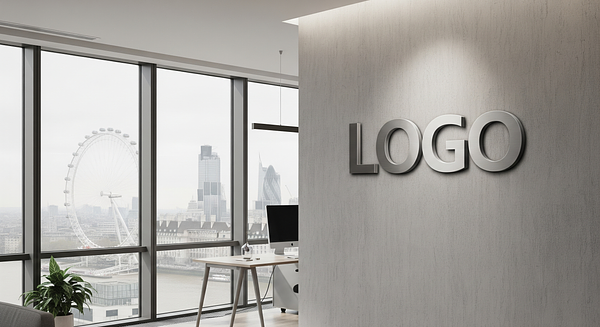
Virtual office backgrounds and office background images are the most popular choice for business meetings. These include modern offices, executive suites, meeting rooms, and stylish workspaces. They project professionalism without being distracting. Whether you need a Zoom office background or a virtual background for Teams meetings, office backgrounds are a safe and professional choice.
Blurred Backgrounds
The blur effect keeps your actual surroundings visible but softened. This creates a neutral color background effect that's ideal when you want to maintain some context about your environment while reducing distractions. It's subtle and widely accepted in professional settings, especially for job interviews.
Branded Backgrounds with Logo
Custom branded backgrounds feature your company logo background, colors, and branding elements. These professional background images are essential for maintaining brand consistency across your organization and making a professional impression on clients.
Home Office & Cozy Office Backgrounds
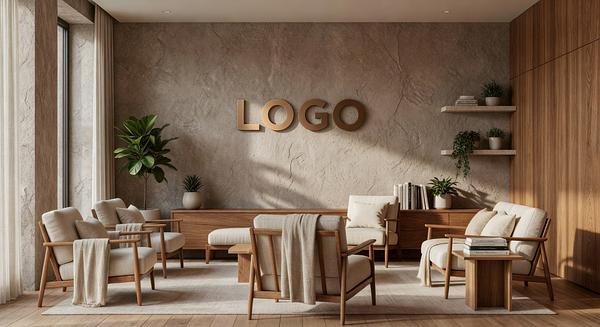
Cozy office backgrounds simulate comfortable, inviting workspaces that feel authentic. These are popular for remote work backgrounds as they create a warm, approachable aesthetic while maintaining professionalism. Perfect for team meetings and internal calls.
Neutral & Realistic Backgrounds
Neutral Zoom backgrounds and realistic backgrounds focus on clean, simple designs that don't distract from your message. These work well for all professional contexts and are especially popular for sales presentations and webinars.
Bookshelf Backgrounds
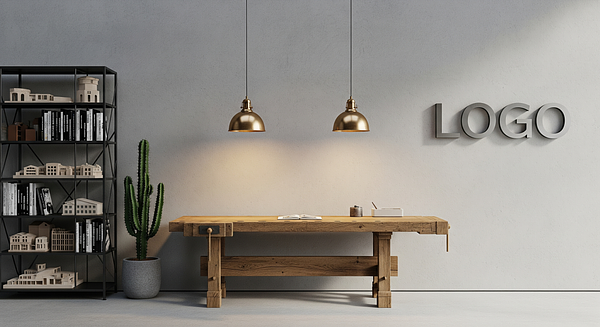
Zoom background bookshelves and library-style backgrounds remain perennially popular for video calls. They convey intelligence, education, and professionalism. Whether you want a the office Zoom background with built-in bookshelves or a dedicated library setting, these backgrounds work well for job interviews, academic meetings, and client calls. Our bookshelf backgrounds can include your logo integrated seamlessly into the scene.
Abstract & Artistic
Abstract backgrounds with geometric patterns, gradients, or artistic designs can be professional while expressing creativity. These work well for creative industries, startups, and less formal meetings.
Video Backgrounds
Some platforms support video backgrounds with subtle animations. These add visual interest but require more processing power and should be used sparingly to avoid distracting meeting participants.
Office Backgrounds by Platform
Zoom Office Backgrounds
- • Zoom office background with logo
- • Free Zoom office backgrounds
- • Home office background for Zoom
- • Zoom virtual background office
Teams Office Backgrounds
- • Office background for Teams with logo
- • Free Teams office backgrounds
- • Office background for Teams meetings
- • Team office backgrounds
Custom Branded Backgrounds for Business
For businesses and professionals, custom branded backgrounds offer unique advantages that generic backgrounds can't match:
Why Branded Backgrounds Matter
- Brand Visibility: Your logo appears in every video call, increasing brand exposure with clients, partners, and prospects
- Team Unity: Creates a cohesive, professional appearance across your entire organization
- Trust Building: Professional branded backgrounds signal attention to detail and established business practices
- Marketing Value: Every meeting becomes a subtle branding opportunity
Elements of Effective Branded Backgrounds
The best branded backgrounds include:
- Subtle Logo Placement: Logo should be visible but not overwhelming, typically in a corner
- Brand Colors: Incorporate your brand palette into the background design
- Professional Setting: Combined with an office or abstract professional environment
- Clean Design: Not too busy—you should remain the focus


Best Use Cases for Virtual Backgrounds
Virtual backgrounds are valuable in many professional scenarios:
Sales Presentations
Build trust with prospects by presenting a polished, branded appearance. Custom backgrounds reinforce your company's professionalism.
Job Interviews
Make a great first impression with a clean, professional background that doesn't distract from your qualifications.
Client Meetings
Maintain consistency across client interactions with branded backgrounds that reinforce your company identity.
Webinars & Presentations
Stand out as a speaker with professional backgrounds that complement your content and brand.
Team Meetings
Create visual unity across your distributed team with consistent branded backgrounds.
Remote Work
Maintain professionalism from any location—home office, coffee shop, or while traveling.
Where to Get Virtual Office Backgrounds
There are several options for obtaining virtual backgrounds, each with different trade-offs:
Free Options
- Built-in Platform Backgrounds: Zoom, Microsoft Teams, and Google Meet all offer free default backgrounds
- Free Background Downloads: Many websites offer free background images (limited customization)
- Stock Photo Sites: Unsplash, Pexels, and Pixabay have free images you can use
Professional Options
- Custom Branded Backgrounds: Services like Brand Wall Pro create professional backgrounds with your logo
- Design Services: Platforms like Fiverr or Upwork let you hire designers to create custom backgrounds
- Premium Stock Sites: Shutterstock and Adobe Stock offer high-quality professional images
Get Professional Backgrounds Today
Brand Wall Pro offers professional virtual backgrounds with your company logo. Starting at just $49.99 per background.
For more detailed comparisons, check out our guide to the best websites for virtual office backgrounds.
Frequently Asked Questions
What is the best size for virtual backgrounds?
The recommended size is 1920x1080 pixels (Full HD) with a 16:9 aspect ratio. This provides the best balance between quality and file size. Images larger than 5MB may cause performance issues on some systems.
Do I need a green screen for virtual backgrounds?
No, modern video conferencing apps use AI to detect your outline without a green screen. However, a green screen can improve quality, especially with older hardware or challenging lighting conditions.
Why does my virtual background look bad?
Common causes include poor lighting (especially backlighting), low-quality webcam, insufficient computer processing power, or wearing colors similar to your background. Improving lighting and ensuring good contrast usually solves most issues.
Can I use a video as a virtual background?
Yes, platforms like Zoom and Teams support video backgrounds. However, these require more processing power and can be distracting in professional settings. Static images are generally recommended for business use.
Are virtual backgrounds appropriate for professional meetings?
Absolutely. Virtual backgrounds are widely accepted in professional settings. The key is choosing appropriate, professional-looking backgrounds. Branded backgrounds with your company logo are particularly well-suited for business meetings.
How do I get my company logo on my background?
Services like Brand Wall Pro specialize in creating professional backgrounds with your company logo. Simply upload your logo, choose a background style, and receive ready-to-use branded backgrounds.
What file formats are supported for virtual backgrounds?
Most platforms support JPG, PNG, and GIF formats. For the best results, use JPG for photographs and PNG for images with transparency. Video backgrounds typically use MP4 or MOV formats.
Conclusion
Virtual office backgrounds have evolved from a novelty to an essential tool for modern professionals. Whether you're working remotely, conducting client meetings, or building your personal brand, the right virtual background can make a significant difference in how you're perceived.
The key takeaways from this guide:
- Proper lighting is crucial for quality virtual backgrounds
- Each platform has its own setup process—familiarize yourself with yours
- Professional branded backgrounds build trust and consistency
- Most common problems can be solved with better lighting and hardware
- Choose backgrounds appropriate for your context and audience
Ready to upgrade your video call presence? Explore our professional background collection and find the perfect background for your needs.
Related Resources
Platform-Specific Virtual Backgrounds
Zoom Backgrounds
Virtual backgrounds for Zoom
Teams Backgrounds
Microsoft Teams backgrounds
Google Meet Backgrounds
Google Meet virtual backgrounds
Webex Backgrounds
Cisco Webex backgrounds
Backgrounds by Use Case
Interview Backgrounds
Professional backgrounds for job interviews
Meeting Backgrounds
Business meeting backgrounds
Remote Work Backgrounds
Home office backgrounds
Team Meeting Backgrounds
Team collaboration backgrounds
Client Meeting Backgrounds
Client call backgrounds
Webinar Backgrounds
Professional webinar backgrounds
Free Virtual Backgrounds
Free Zoom Backgrounds
Download free Zoom office backgrounds
Free Teams Backgrounds
Free Microsoft Teams backgrounds
Free Google Meet Backgrounds
Free Google Meet backgrounds